

Ayunis Core in Outlook
With the Ayunis Core for Outlook add-in you open Ayunis Core right next to your emails. Ayunis Core reads the open email and its attachments and helps you understand and answer it – without copying text back and forth between Outlook and your browser.
Practical Example
Section titled “Practical Example”At citizen services you receive a long inquiry about a resident parking permit, with the vehicle registration and a certificate of residence attached. You open Ayunis Core in Outlook, have the inquiry summarized, and ask whether all documents are complete. Then you click Prepare reply and, below the draft, Reply. Outlook opens your reply with the draft, you check it and send it as usual.
What Ayunis Core Does for You in Outlook
Section titled “What Ayunis Core Does for You in Outlook”| Task | Example |
|---|---|
| Summarize emails | Boil a long inquiry with several requests down to the key points |
| Answer questions about the email | ”Which documents are still missing?” or “By when does the sender expect a reply?” |
| Evaluate attachments | Read an attached application or official notice and compare it with the email |
| Draft replies | Prepare a reply in the right tone that you take over into Outlook with one click |
| Revise your own replies | Have your text shortened, worded more politely, or checked for spelling |
Supported Outlook Versions
Section titled “Supported Outlook Versions”| Outlook version | Available | Notes |
|---|---|---|
| Outlook on the web (Microsoft 365) | Yes | All features |
| New Outlook for Windows | Yes | All features |
| Classic Outlook for Windows with Microsoft 365 or Outlook 2021 and later | Yes | All features |
| Classic Outlook for Windows (Microsoft 365 or Outlook 2021 and later) with a mailbox on your own Exchange Server | Yes | Ayunis Core cannot read attachments, and the side pane cannot be pinned |
| Outlook on the web of your own Exchange Server | Yes | Same as classic Outlook with Exchange Server. Your administrator must have its address approved once |
| Outlook 2016 and Outlook 2019 | No | The side pane stays white. Microsoft no longer supports these versions |
| Outlook on smartphones and tablets | No |
Ayunis Core works with emails, not with calendar appointments. In shared mailboxes and shared folders, Ayunis Core is only available in Outlook with Microsoft 365.
Open Ayunis Core
Section titled “Open Ayunis Core”- Open an email in Outlook
- Click Ayunis Core:
- Outlook on the web and new Outlook: Click Apps in the ribbon, then Ayunis Core
- Classic Outlook: Click Ayunis Core on the Home tab
Ayunis Core opens as a side pane to the right of the email. When you write a reply or a new email, you find Ayunis Core in the same place – in classic Outlook on the Message tab.
Sign In
Section titled “Sign In”The first time you open it, you sign in once:
- Click Sign in in the side pane
- Sign in with your Ayunis Core account in the new window – just like in the browser, including two-factor authentication or single sign-on
- The window closes and Ayunis Core is ready in the side pane
To sign in with a different account, choose the Use a different account link instead of Sign in.
After that, you stay signed in to Outlook. If your session expires, Ayunis Core asks you to sign in again.
Work With an Email
Section titled “Work With an Email”The side pane shows a greeting, two quick starts, and the input field:
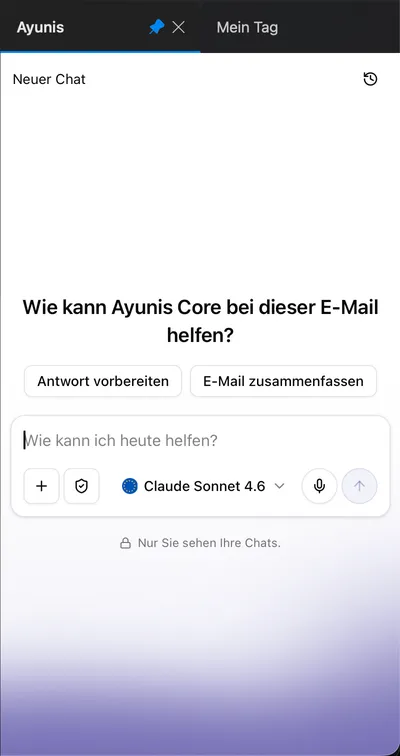
| Quick start | What happens |
|---|---|
| Prepare reply | Ayunis Core reads the email and writes a draft reply |
| Summarize email | Ayunis Core summarizes the key points of the email |
You can also type your own questions or instructions, just like in the regular chat. Ayunis Core always knows which email is open. You do not need to copy anything.
Good Instructions
Section titled “Good Instructions”The more precisely you describe what you need, the better the result. Some examples:
- “Summarize the email in three sentences and name the deadline.”
- “Which documents are still missing for the application?”
- “Reply politely but firmly and refer to the fee ordinance.”
- “Write a short acknowledgment of receipt and announce a reply within two weeks.”
- “Phrase the draft more simply, without bureaucratic jargon.”
- “Write the reply in German.”
If you do not like a draft yet, just say what you want changed. Ayunis Core then writes a new draft.
Attachments
Section titled “Attachments”Ayunis Core also reads the email’s attachments, such as PDF or Word documents and attached emails. You do not need to download and upload them again. Just ask about them, for example: “What does the attached certificate of residence say?” Ayunis Core reads the same file formats as the chat.
It cannot read:
- Attachments that are only inserted as a link to a file in the cloud, for example from OneDrive
- Attachments in Outlook with a mailbox on your own Exchange Server
Of very long documents, Ayunis Core only reads the beginning. In these cases, upload the file with the plus icon (+) in the input field, as in the regular chat.
Language Model and Anonymous Mode
Section titled “Language Model and Anonymous Mode”In the input field you choose the language model and turn on Anonymous Mode, just like in the regular chat. In Anonymous Mode, Ayunis Core replaces personal data from the email and its attachments with placeholders before the AI sees them. Your draft shows the real names and data again.
Take Over a Draft Reply
Section titled “Take Over a Draft Reply”Ayunis Core shows a draft reply in the side pane. How you take it over into Outlook depends on whether you are reading the email or already writing a reply.
Reply From the Email
Section titled “Reply From the Email”While you are reading the email, the draft shows the Reply all and Reply buttons.
- Click Reply all or Reply below the draft
- Outlook opens a reply that already contains the draft
- Check and edit the text in Outlook and send the email as usual
The buttons only appear on the latest draft and only while the email it belongs to is open.
Insert Into a Reply You Already Opened
Section titled “Insert Into a Reply You Already Opened”If you already clicked Reply in Outlook yourself, the draft shows Insert into open reply instead.
- Open Ayunis Core in your reply – you see the same chat as for the email
- Click Insert into open reply below the draft
- Ayunis Core inserts the draft above your signature and the quoted email
- Check and edit the text in Outlook and send the email as usual
Work With Ayunis Core While Writing
Section titled “Work With Ayunis Core While Writing”If you open Ayunis Core while writing a reply or a new email, Ayunis Core writes drafts directly into your email:
- The draft goes above your signature and the quoted email
- If you ask for changes, Ayunis Core replaces its previous draft. The draft then shows Replaced the previous draft
- Text you wrote yourself stays in place. If you have your own text revised, Ayunis Core inserts the new version above it – delete your old version once you take over the new one
- On request, Ayunis Core saves the email to your Drafts folder, for example with “Save the email as a draft.”
Chats for Your Emails
Section titled “Chats for Your Emails”Ayunis Core keeps a separate chat for each email:
- If you open an email again later, Ayunis Core opens its chat and you continue where you left off
- If you reply to the email, you see the same chat in the reply
- With a pinned side pane, Ayunis Core automatically switches to the chat of the email you open
Ayunis Core remembers this mapping on the device on which you use Outlook. Use the history icon at the top of the side pane to open all your previous chats from Outlook. You only see these chats in Outlook, not in the chat overview of Ayunis Core in your browser. Only you can see your chats.
Troubleshooting
Section titled “Troubleshooting”| Problem | Solution |
|---|---|
| Ayunis Core does not appear in Outlook | Check that you use a supported Outlook version and have an email open. After deployment it can take a few hours until the add-in appears. Restart Outlook or reload Outlook on the web. If it still does not appear, contact your administrator |
| The side pane stays white | You are probably using Outlook 2016 or 2019. These versions are not supported. Use Outlook on the web or a supported Outlook version |
| Nothing happens after signing in in the window | Click Sign in in the side pane again |
| Sign-in failed | Try again. If you signed in with the wrong account, choose Use a different account |
| Your session has expired | Sign in again |
| Ayunis Core can’t be reached right now | Check your internet connection and try again later. If the error persists, contact your administrator |
| Open Ayunis Core from the add-in in Outlook | This page only works in Outlook. Open Ayunis Core with the button in Outlook |
| Reply and Reply all are missing below the draft | The buttons only appear on the latest draft while its email is open. Open the email again or ask for a new draft |
| Open a reply in Outlook to insert the draft. | Click Reply in Outlook and open Ayunis Core there |
| The open email changed, so this was not done. | You opened another email while the draft was being inserted. Switch back and try again |
| Outlook could not do this. | Try again. If it still does not work, copy the draft from the side pane into your reply |
| Ayunis Core cannot read an attachment | Check whether the attachment is a file or only a link and whether its format is supported. Otherwise upload the file with the plus icon (+) |
| The pin icon is missing | Pinning is only available in Outlook with Microsoft 365. Otherwise open Ayunis Core again for each email |
Data Protection
Section titled “Data Protection”The emails you work with in Outlook are protected exactly like the regular chat in your browser. Outlook is just another interface: behind it, the same Ayunis Core works with the same language models, the same storage, and the same deletion periods. This also applies when the email contains personal data.
What Ayunis Core Reads From the Email
Section titled “What Ayunis Core Reads From the Email”Ayunis Core only accesses the email that is currently open, and only while you use it. The rest of your mailbox, your calendar, and your contacts stay invisible to Ayunis Core.
- When Ayunis Core needs the email for your request, it reads the subject, sender, recipients, date, the text of the message, and the names of the attachments
- Ayunis Core only reads an attachment when it needs it for your request. It adds documents such as PDF or Word files to the chat as a file – just like a file you upload in the chat
- What Ayunis Core has read becomes part of the chat for this email, like a message you type yourself
Where the Content Is Stored and for How Long
Section titled “Where the Content Is Stored and for How Long”The chat for an email is stored with the content read like any other chat: at Ayunis in a German data center.
- Deletion periods: The data retention your administrator sets for your organization applies. Chats from Outlook are deleted after the same period as chats in the browser. If no period is set, chats are kept until they are deleted
- Delete it yourself: To delete a chat, click the history icon in the side pane and then the trash icon next to the chat. The chat is permanently deleted
- On your device: Ayunis Core stores no email content there, only which chat belongs to which email
Transfer to Language Models and Third Parties
Section titled “Transfer to Language Models and Third Parties”- Language models: To answer, Ayunis Core transmits the chat history, including the email content read, to the language model you chose in the input field. You can choose from the same models as in the browser – that is, only the models your administrator has enabled. The model providers process the content in Germany or the EU, do not store it, and do not use it for training. The page Data flow: Where does a request go? shows how this works in detail
- Anonymous Mode: If you start the chat in Anonymous Mode, Ayunis Core replaces personal data from the email and its attachments with placeholders before they go to the language model
- No further recipients: The add-in transmits the email content encrypted directly from Outlook to Ayunis Core. No service providers are added beyond those of the regular chat. Integrations your administrator has enabled receive, as in the regular chat, only the data needed for the respective call
Sign Out
Section titled “Sign Out”- Click the history icon at the top of the side pane
- Click Sign out
Deploy the Add-in
Section titled “Deploy the Add-in”You deploy the add-in once for your organization:
- Mailboxes in Microsoft 365 (Exchange Online): in the Microsoft 365 admin center. This requires Microsoft 365 or Exchange administrator rights.
- Mailboxes on your own Exchange Server: in the Exchange admin center or with the Exchange Management Shell. This requires Exchange administrator rights.
Which Outlook versions your users need is listed under Supported Outlook Versions.
Find the Manifest URL
Section titled “Find the Manifest URL”Both ways need the Manifest URL that your Ayunis Core provides for the add-in.
- Navigate to Admin Settings → Integrations
- In the Connections section, click Microsoft Office add-ins
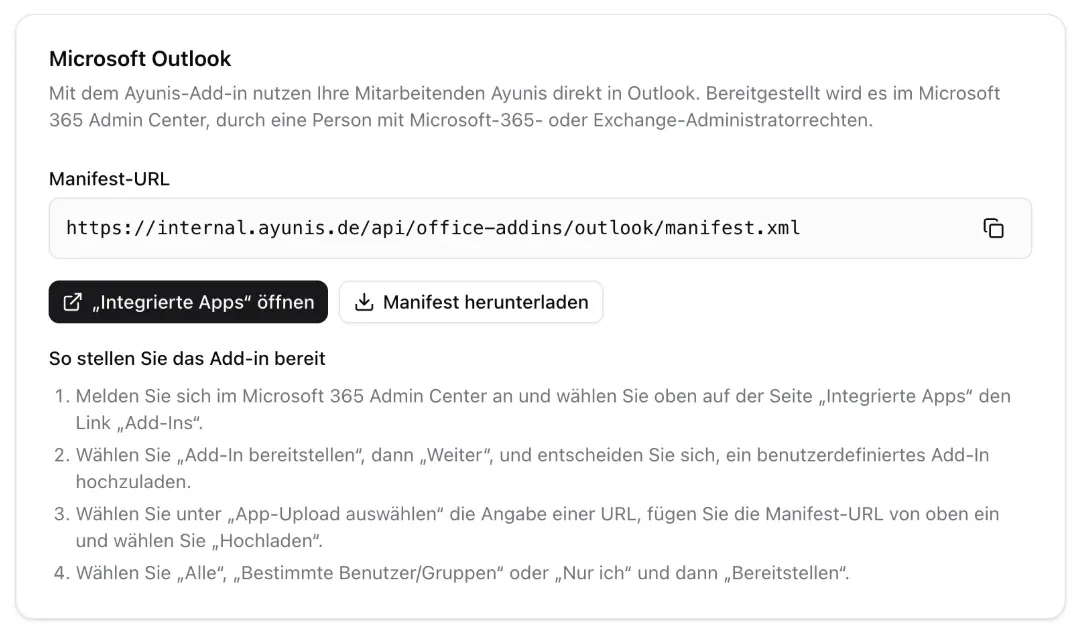
- On the Microsoft Office card you find:
- the Manifest URL to copy
- Download manifest, if you prefer to upload a file
- Open Integrated apps as a direct link to the Microsoft 365 admin center
- a short guide for the Microsoft 365 admin center
Microsoft 365 (Exchange Online)
Section titled “Microsoft 365 (Exchange Online)”- Copy the Manifest URL as described above
- Click Open Integrated apps and sign in to the Microsoft 365 admin center
- Select the Add-ins link near the top of the Integrated apps page
- Select Deploy Add-in, then Next, and choose to upload a custom add-in
- Under Choose how to upload app, choose to provide a URL, paste the manifest URL, and select Upload
- Select Everyone, Specific users/groups, or Just me, then select Deploy
If a new version of Ayunis Core extends the add-in, update it under Integrated apps. Microsoft shows you which additional Outlook features the add-in wants to use. They only take effect once you consent.
Your Own Exchange Server
Section titled “Your Own Exchange Server”The Microsoft 365 admin center does not reach mailboxes on your own Exchange Server. Install the add-in in the Exchange admin center instead:
- Copy the Manifest URL as described above
- In the Exchange admin center, open Organization → Add-ins
- Click + and choose Add from URL
- Paste the manifest URL and install the add-in
- Make the add-in available to the users in your organization and set it to be enabled by default
With Add from URL, your Exchange Server downloads the manifest itself. If it cannot reach your Ayunis Core, download the manifest with Download manifest and choose Add from file instead.
Alternatively, install the add-in for all users with the Exchange Management Shell:
New-App -OrganizationApp -Url <Manifest URL> -ProvidedTo Everyone -DefaultStateForUser EnabledApprove Outlook on the Web of Your Exchange Server
Section titled “Approve Outlook on the Web of Your Exchange Server”In classic Outlook for Windows, the add-in works without further steps. If your users also use Outlook on the web of your Exchange Server, its address must be approved in Ayunis Core so that the side pane is shown there. Contact us with the address of your Outlook on the web, for example https://mail.your-municipality.gov.
Until the Add-in Appears
Section titled “Until the Add-in Appears”New add-ins do not appear immediately. It can take a few hours until Ayunis Core appears in Outlook for all users. After that, restarting Outlook or reloading Outlook on the web can help.
What the Add-in Accesses
Section titled “What the Add-in Accesses”The add-in only accesses the email a user currently has open, and only while they use Ayunis Core. It gets no access to mailboxes, calendars, or contacts beyond that and does not send emails. Users sign in to the add-in with their Ayunis Core account. Beyond the deployment, you do not need to set up anything in Microsoft 365 or on your Exchange Server.
How Ayunis Core stores, deletes, and transmits email content to language models is described under Data Protection.