

Documents, Images, Knowledge Collections, and Integrations
You can share documents, images, and knowledge collections in chat so the AI can analyze, summarize, or use them as a basis for its responses. You can also connect integrations to use external services directly in the chat.
Adding Documents
Section titled “Adding Documents”Supported Formats
Section titled “Supported Formats”| Format | File Type | Typical Use |
|---|---|---|
| Reports, decisions, forms | ||
| Word | .docx | Letters, templates, drafts |
| PowerPoint | .pptx | Presentations |
| OpenDocument Text | .odt | LibreOffice/OpenOffice text documents |
| OpenDocument Presentation | .odp | LibreOffice/OpenOffice presentations |
| Excel/CSV | .xlsx, .xls, .csv | Tables, lists, data |
| Audio | .mp3, .m4a, .wav, .webm | Meeting recordings, voice memos, interviews |
Limits
Section titled “Limits”| Limit | Value |
|---|---|
| Maximum number of documents per chat | 20 |
| Maximum file size | 25 MB |
If you reach the document limit, remove a document before adding another. For larger collections of files, consider using a knowledge collection instead.
How to Add a Document
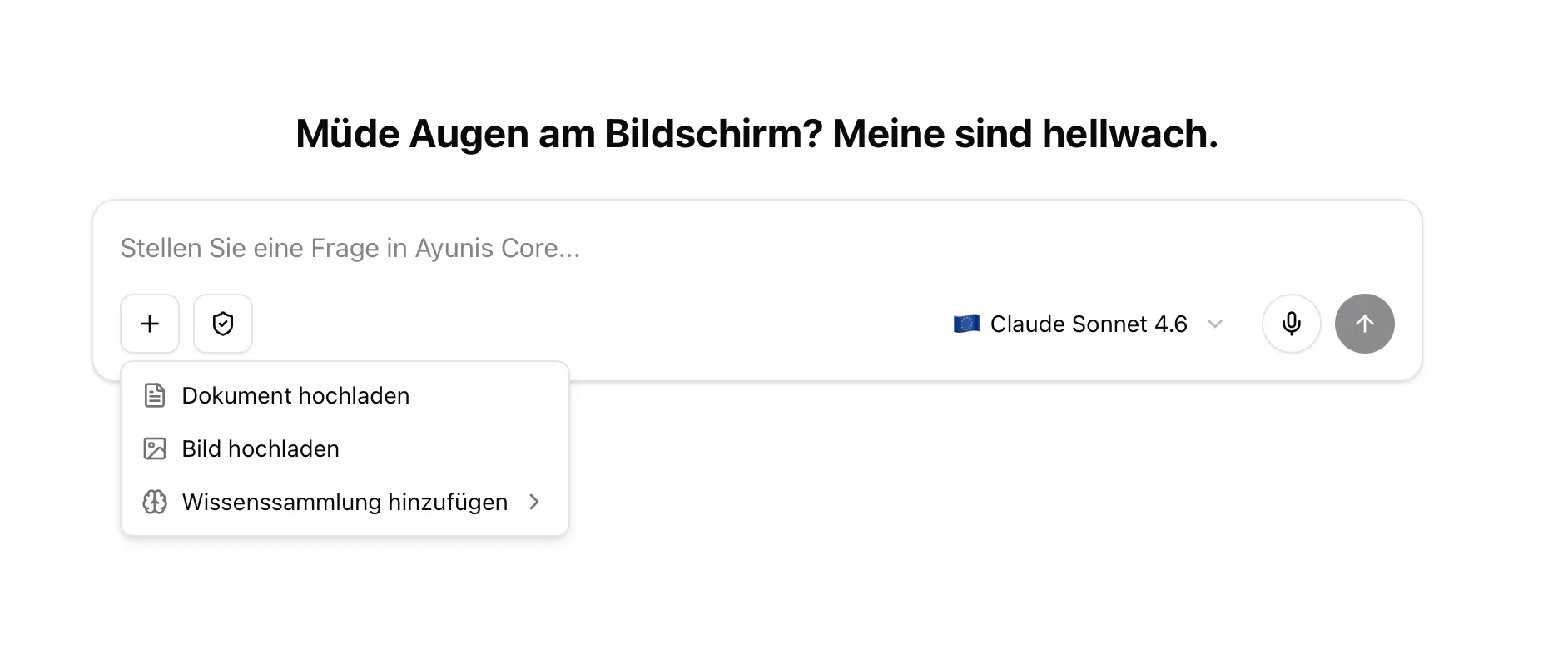
Section titled “How to Add a Document”- Click the plus icon (+) in the input area
- Select Upload document
- Select one or more files from your computer — you can select multiple files at once
- Wait until the files are uploaded and processed — the send button is disabled until processing is complete
- Ask your question about the documents
Practical Example: Summarize Document
Section titled “Practical Example: Summarize Document”You have a 30-page PDF of a committee meeting minutes. Upload it to the chat and write:
“Summarize these minutes. List the most important decisions and open tasks with responsible persons.”
Adding Images
Section titled “Adding Images”Supported Formats
Section titled “Supported Formats”JPEG, PNG, GIF, and WebP – maximum 10 MB per image, up to 8 images per message.
How to Add Images
Section titled “How to Add Images”- Click the plus icon (+) in the input area
- Select Upload image
- Select the desired image from your computer
What the AI Can Do with Images
Section titled “What the AI Can Do with Images”- Describe content – e.g., explain what’s in a photo
- Read text in images – e.g., extract text from a photo or screenshot
- Analyze – e.g., evaluate diagrams or plans
Practical Example: Analyze Image
Section titled “Practical Example: Analyze Image”You receive a photo of a damaged playground attached to a defect report. Upload the image to the chat and ask:
“Describe the visible damage in this photo. Create a list of defects for the public works department.”
Adding a Knowledge Collection
Section titled “Adding a Knowledge Collection”You can add a knowledge collection directly to a new chat so the AI can access the documents it contains:
- Start a new chat
- Click the plus icon (+) in the input area
- Select the desired knowledge collection
The AI can then answer questions based on the documents in that knowledge collection — without you having to upload the files individually.
Tips for Working with Files
Section titled “Tips for Working with Files”- Attach relevant files – Only upload documents relevant to your question
- Ask targeted questions – “Summarize pages 5–8” is better than “What’s in the document?”
- Consider data protection – Check if the document contains personal data and use anonymous mode if needed
Adding an Integration
Section titled “Adding an Integration”You can connect integrations (external services and tools) directly to an active chat, even without using a skill:
- Click the + button next to the input field
- Select Add Integration
- Choose the desired integration from the submenu
- The integration is now available for the AI in this chat
The AI can then access the connected service — for example, to retrieve data from a specialized system or perform actions on your behalf.
Next Steps
Section titled “Next Steps”- Knowledge Collections – Create and manage knowledge collections
- Anonymous mode – Protect personal data in documents