

Models
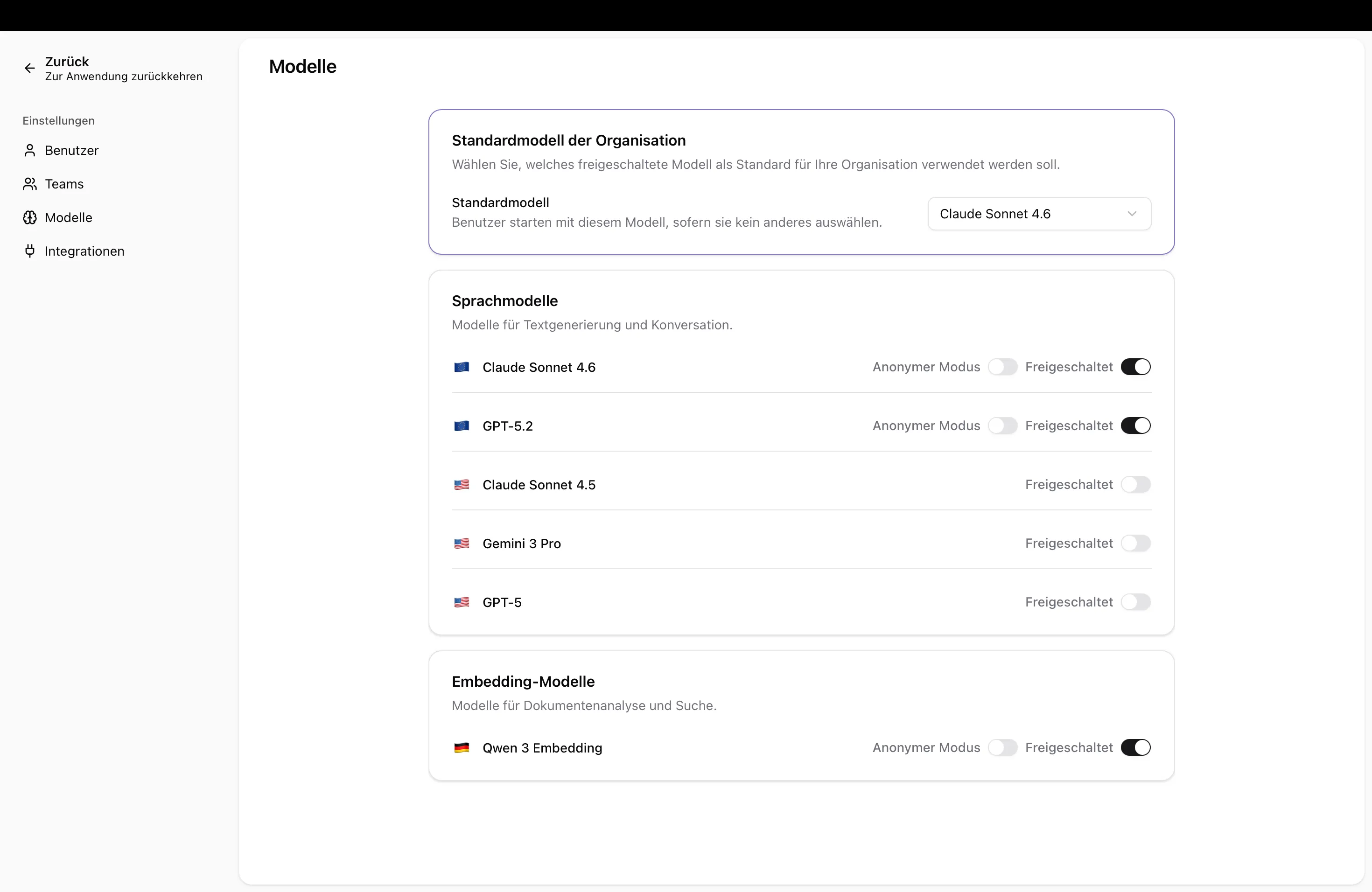
In the Models section, you determine which language models are available to users in your organization. You can enable, disable, and set a default model for the entire organization. Users will only see the models you have enabled in their chat.
The Models page is organized into two tabs:
- Organization — manage the models available to your entire organization (enable/disable models, set a default, enforce anonymous mode).
- Teams — view and configure model policies for individual teams at a glance.
Opening the Model Overview
Section titled “Opening the Model Overview”- Navigate to Admin Settings → Models
- The Organization tab shows all available models with their provider and status
- Switch to the Teams tab to see team-specific model policies
Available Models
Section titled “Available Models”You can see which models are available to your organization in the model overview in admin settings. Each model is displayed with its provider and current status.
Model Identifier for API Use
Section titled “Model Identifier for API Use”Each model shows a technical model identifier (e.g., gpt-4o, claude-sonnet-4-20250514) below its display name. This identifier is what you need to specify in the model parameter when using the Ayunis API. If a model has a display name that differs from the technical identifier, both are shown so you can easily copy the correct value for API calls.
Enabling or Disabling Models
Section titled “Enabling or Disabling Models”- Find the model in the list
- Toggle the Enabled switch
- Enabled: Users can select the model in chat
- Disabled: The model is no longer available to users
Viewing Model Information
Section titled “Viewing Model Information”When selecting a model in chat, users see an info card for each model with a description, the usage tier (consumption per message), and the hosting location. Learn more under Understanding Language Models.
Enforce Anonymous Mode per Model
Section titled “Enforce Anonymous Mode per Model”You can make anonymous mode mandatory for each model. When this option is enabled, users can only use this model in anonymous mode – personal data is then automatically protected.
- Find the model in the list
- Enable the Enforce anonymous mode option
This is particularly useful when a model is operated by an external provider and you want to ensure that no personal data is transmitted to that provider.
Reporting a Provider Fault
Section titled “Reporting a Provider Fault”When an external model provider has a known outage, you can mark the affected model as having a provider fault. Users will then see a warning in the model selector and in their chat, so they know that responses may fail.
- Find the model in the list
- Click Edit
- Enable the Known upstream/provider fault option
- Save your changes
Users will then see a warning icon next to the model name and a notice in the chat. Remove the marking once the issue is resolved.
Setting a Default Model
Section titled “Setting a Default Model”The default model is automatically pre-selected for new chats for all users.
- Find the desired model in the list
- Click Set as Default
- New chats will now use this model by default
Team Model Policies
Section titled “Team Model Policies”The Teams tab provides a quick overview of how each team’s model access is configured. For every team in your organization, you can see whether it uses the organization-wide model settings or a custom model policy.
| Policy | Meaning |
|---|---|
| Inherited from organization | Team members see the same models as all other users |
| Custom policy | Team members see only the models you have explicitly selected for the team |
To configure a team’s model policy:
- Switch to the Teams tab
- Find the team (use the search bar if needed)
- Click Configure
- You will be taken to the team’s model settings, where you can enable the custom policy and select specific models
You can also reach the same settings from the Teams page.
Next Steps
Section titled “Next Steps”- Understanding Language Models — Background information on language models
- Credit Limits — Control spending per team or user
- API Keys — Use models programmatically via the OpenAI-compatible API