

Account
In the account settings, you manage your personal details and access.
Opening Settings
Section titled “Opening Settings”- Click on your name at the bottom left
- Select Settings
- Navigate to the Account section
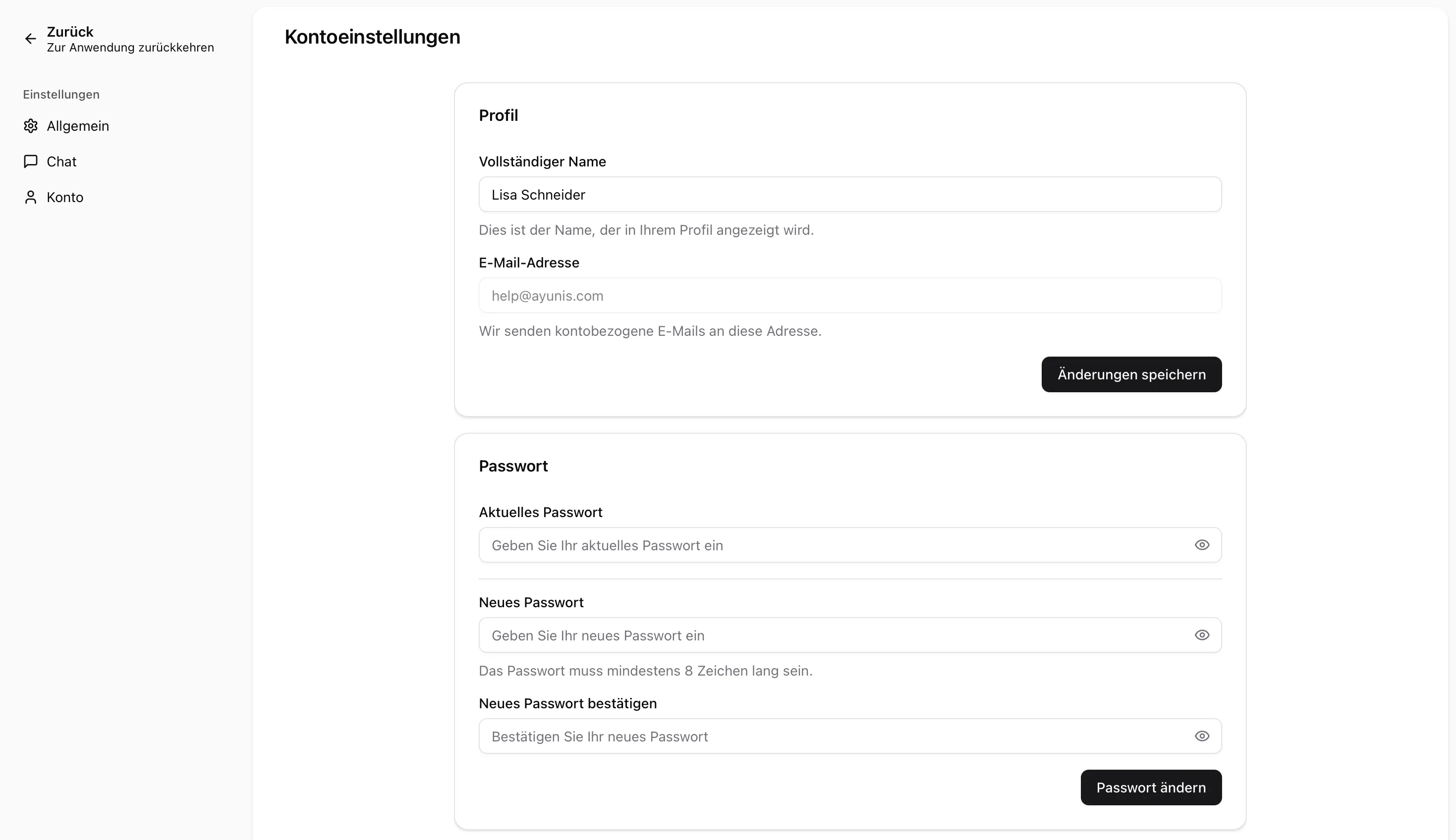
Your name is displayed to colleagues on the platform. You can change it at any time:
- Click the input field next to “Name”
- Enter your new name
- Click Save
Email Address
Section titled “Email Address”Your email address is displayed but cannot be changed. It serves as your login credentials.
Password
Section titled “Password”If your account has an Ayunis password, you can change it directly in the account settings:
- Enter your current password
- Enter your new password
- Click Save
Two-Factor Authentication (2FA)
Section titled “Two-Factor Authentication (2FA)”Two-factor authentication protects your account with an additional security step. During sign-in, a one-time code from an authenticator app (e.g. Google Authenticator, Microsoft Authenticator, or Authy) is requested. After organization sign-in, this step may be skipped if a second factor was already verified there.
Enabling 2FA
Section titled “Enabling 2FA”- Navigate to Settings → Account
- In the Two-factor authentication card, click Enable
- Scan the displayed QR code with your authenticator app
- Enter the verification code from the app
- Save your recovery codes in a secure place
Disabling 2FA
Section titled “Disabling 2FA”- In the Two-factor authentication card, click Disable
- Enter a code from your authenticator app or a recovery code to confirm
- Confirm the deactivation
AI Act Training
Section titled “AI Act Training”In the account settings, you will find a card showing the status of your AI Act training:
- Last passed: The date you last completed the Academy
- Next renewal due: The date by which you must renew your confirmation of participation (only when your organization requires annual renewal)
- Status badge: Shows whether your confirmation of participation is valid, expiring soon, expired, or not yet earned
Click Go to the academy to go directly to the Academy to obtain or renew your confirmation of participation.
Next Steps
Section titled “Next Steps”- General Settings — Adjust appearance and language
- Chat Settings — Adjust default model and personal system prompt
- Login, SSO & Password — Use sign-in options and manage your password