

Create and Manage Chats
In Ayunis Core, you conduct your conversations with the AI in so-called chats. Each chat is an independent conversation that is automatically saved.
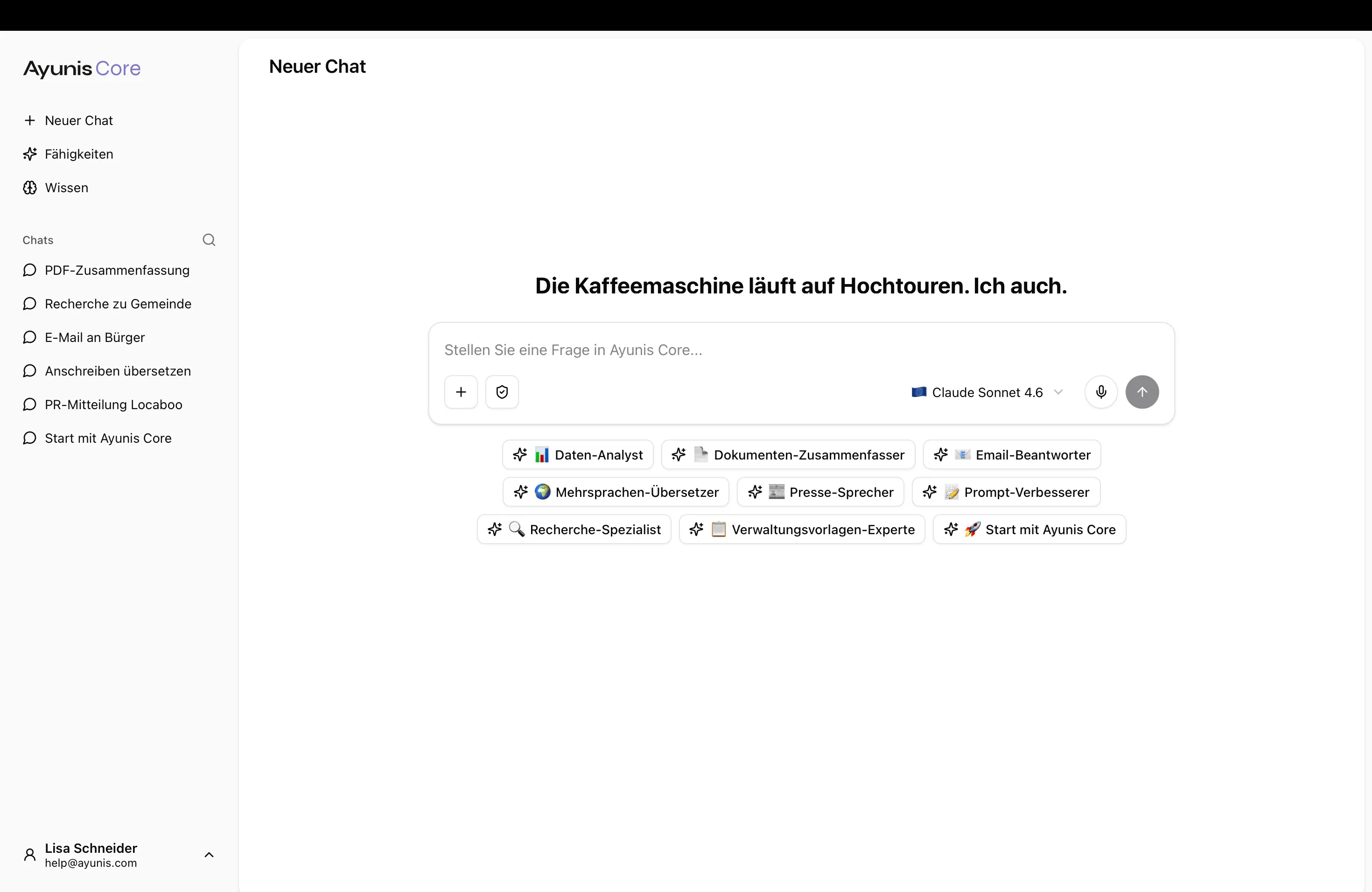
Starting a New Chat
Section titled “Starting a New Chat”- Click + New Chat in the left sidebar (or press
Ctrl/Cmd + J) - Optionally select a skill, a language model, or a knowledge collection
- Enter your message in the input field
- Press Enter or click the arrow on the right side of the input field
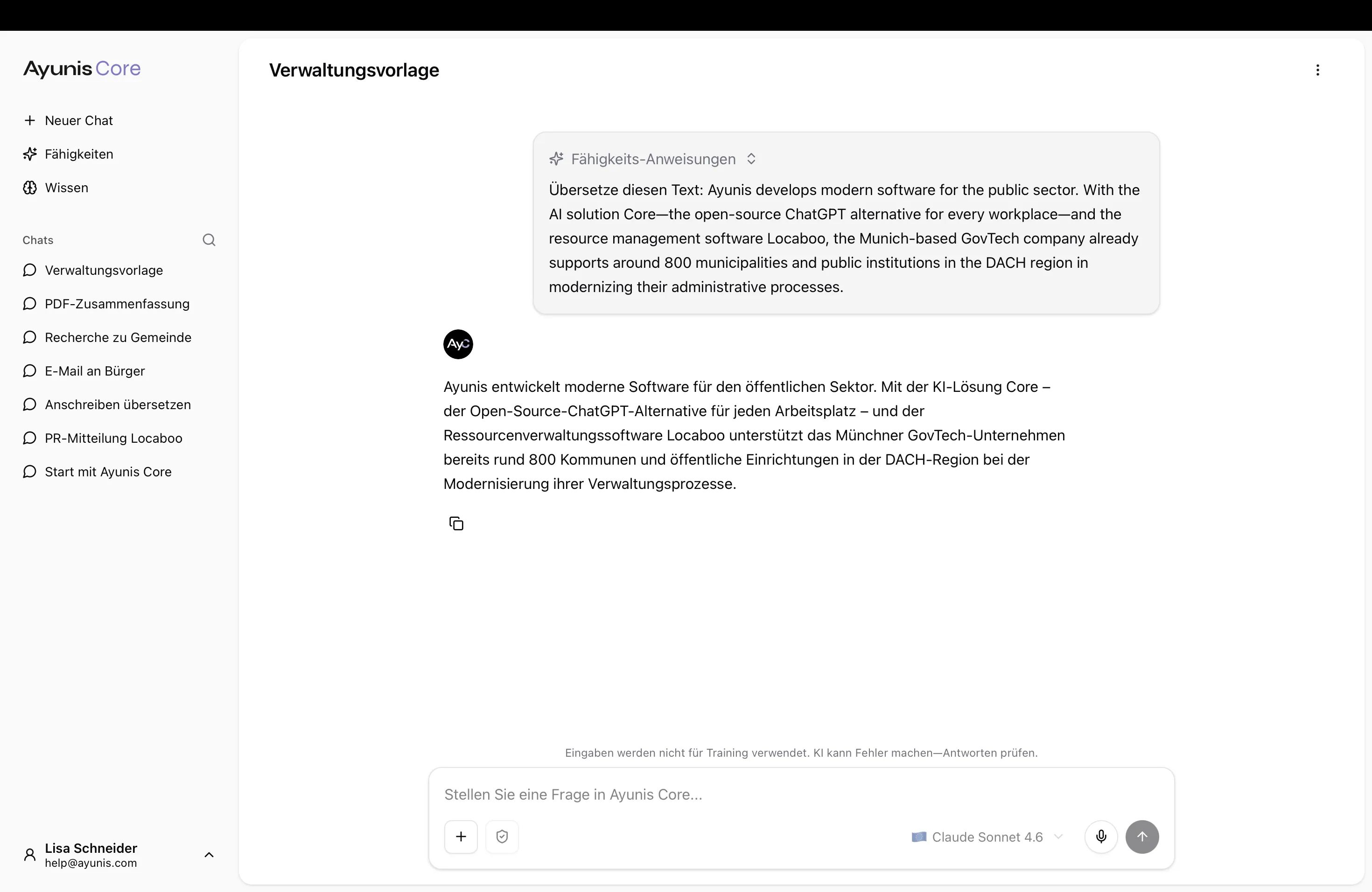
The AI’s response appears in real time – you can read along immediately as the text is generated.
Activity Timeline
Section titled “Activity Timeline”When the AI works on your request, it often performs multiple steps in the background — such as searching the internet, reading documents, or creating files. These steps are grouped into a collapsible “Working…” panel that appears above the AI’s response.
- While the AI is working, you see a pulsing “Working…” label. Click it to expand the panel and follow the individual steps in real time.
- When the response is complete, the label changes to a summary like “5 steps”. You can expand the panel at any time to review what the AI did.
Each step shows what action the AI performed (e.g., “Searched the internet”, “Created document”, “Searched knowledge base”) and, where available, additional details such as the search query or document title.
Continuing a Conversation
Section titled “Continuing a Conversation”The AI remembers the history of your chat. You can:
- Ask follow-up questions without repeating the context
- Ask for clarification if you want something explained in more detail
- Build on previous answers to refine results
Practical Example: Refining a Letter
Section titled “Practical Example: Refining a Letter”You: Write a response letter to a citizen inquiry about the processing time for a building permit application.
AI: [Creates a draft]
You: Make the tone a bit friendlier and add the current processing time of 6–8 weeks.
AI: [Revises the draft accordingly]
Stopping a Response
Section titled “Stopping a Response”If the AI response is going in the wrong direction:
- Click the Stop button (appears during generation)
- The response will be stopped
- Reformulate your request and send a new message
Copying Responses
Section titled “Copying Responses”To copy an AI response into another program:
- Hover over the response
- Click the Copy icon
- Paste the text at the desired location
Copying Code Blocks
Section titled “Copying Code Blocks”If an AI response contains a code block (e.g., a formula, a script, or a configuration example), you can copy its content directly using the Copy button in the top-right corner of the code block. After copying, a checkmark briefly appears as confirmation.
Legal References in AI Responses
Section titled “Legal References in AI Responses”When the AI cites German laws in its responses, these references are automatically displayed as highlighted, clickable links. Clicking a reference opens the relevant provision on an external legal portal in a new tab.
| Example | Destination |
|---|---|
| § 433 Abs. 2 BGB | Opens the corresponding section of the German Civil Code on bundesrecht.online |
| Art. 1 POG | Opens the article in the respective state law on landesrecht.online |
References to federal law and to the law of all 16 German states are supported.
Draft Preservation
Section titled “Draft Preservation”If you type a message but do not send it, Ayunis Core automatically saves the text as a draft. When you switch to another chat and come back later, your unsent message is still there — you can continue writing right where you left off.
- Drafts are saved per chat in your browser.
- Once you send the message, the draft is cleared automatically.
- No action is required on your part — draft saving happens in the background.
Adjusting Chat Title
Section titled “Adjusting Chat Title”Each chat automatically receives a title based on your first message. To change it:
- Click the three dots (⋯) next to the chat in the sidebar
- Select Rename
- Enter a meaningful title
- Confirm with Enter
A good title helps you quickly find important conversations later – e.g., “Response Citizen Inquiry Parking Permit” or “Draft Annual Report 2025”.
Deleting a Chat
Section titled “Deleting a Chat”If you no longer need a chat:
- Click the three dots (⋯) next to the chat in the sidebar
- Select Delete
- Confirm – the chat will be permanently deleted
Next Steps
Section titled “Next Steps”- Search and organize chats – How to find previous conversations
- Prompting: Basics & Best Practices – How to formulate better requests