

Users
In the Users section, you manage all users of your organization: invite new people, assign roles, and control access.
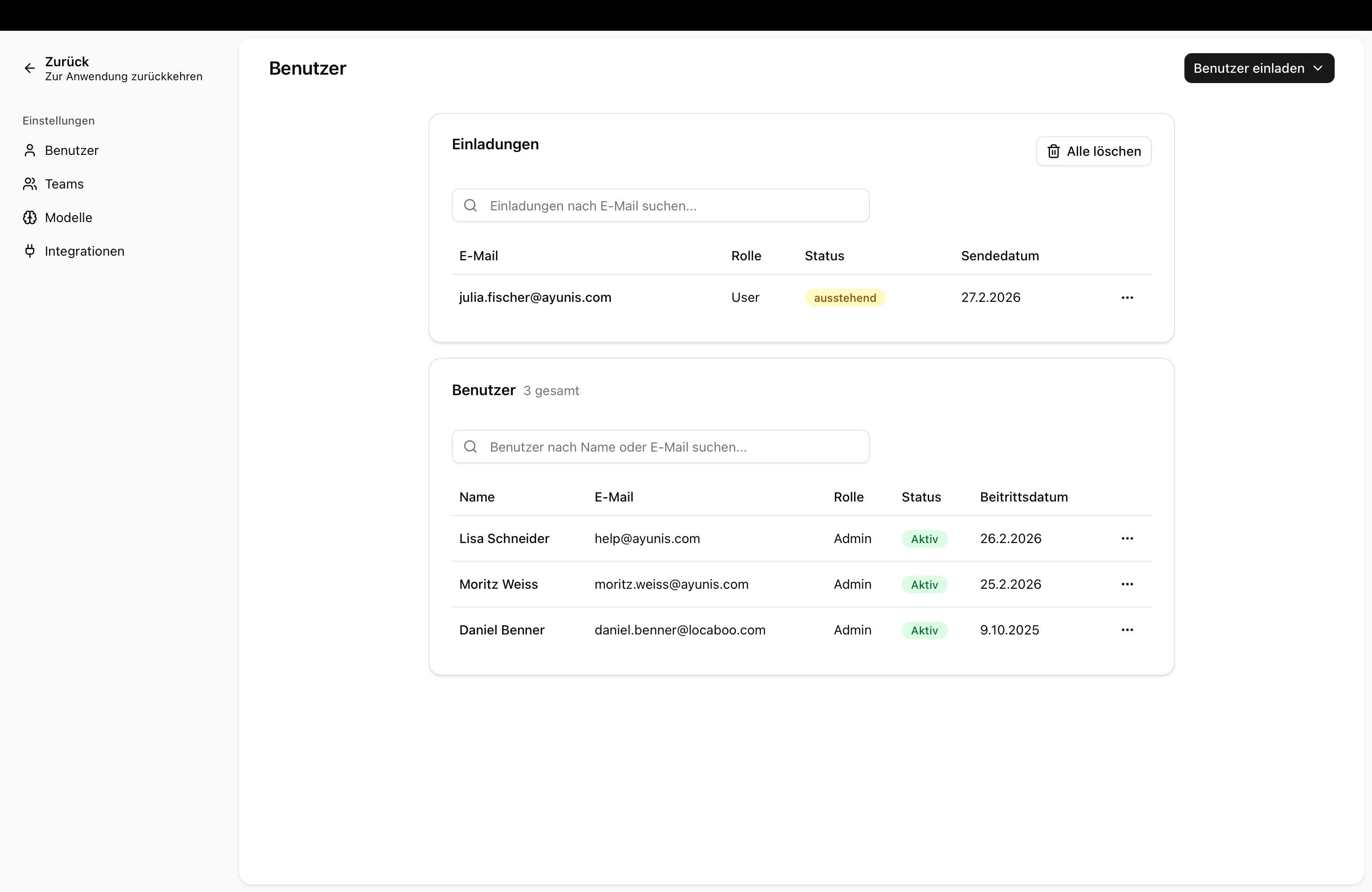
Opening the User Overview
Section titled “Opening the User Overview”- Navigate to Admin Settings → Users
- You will see a list of all users with:
- Name and email address
- Role (User or Administrator)
- Join date
Roles at a Glance
Section titled “Roles at a Glance”| Role | Permissions |
|---|---|
| User | Chat, create and use skills, upload documents |
| Administrator | Additionally: manage users, manage teams, configure models, change settings, view usage |
Inviting Users
Section titled “Inviting Users”For a detailed guide on inviting users, see Getting Started: Invite Users.
Quick guide:
- Click Invite User
- Enter the email address
- Select a role
- Click Send Invitation
Editing a User
Section titled “Editing a User”To edit a user, click the three dots (⋯) next to the user in the list. The following options are available:
Change Role
Section titled “Change Role”Select the desired role directly from the options:
Send Password Reset
Section titled “Send Password Reset”If a user has forgotten their password:
- Click the three dots (⋯) next to the user
- Select Send password reset
- The user will receive an email with a link to reset their password
Delete User
Section titled “Delete User”To permanently revoke access:
- Click the three dots (⋯) next to the user
- Select Delete
- Confirm the action
Next Steps
Section titled “Next Steps”- Manage Teams — Organize users into teams
- Getting Started: Invite Users — Detailed invitation guide