

Teams
Teams let you organize your users into groups — for example, by department, project, or function. Teams allow you to share skills with specific user groups instead of making them available to the entire organization.
Practical Example
Section titled “Practical Example”Your municipal administration has several departments. You create a separate team for each:
- “Citizen Office” — gets access to skills for citizen inquiries and registration matters
- “Building Department” — uses skills with knowledge collections about building regulations and forms
- “Finance Department” — works with skills related to fee schedules and budgeting
This way, each department gets exactly the skills it needs for its work.
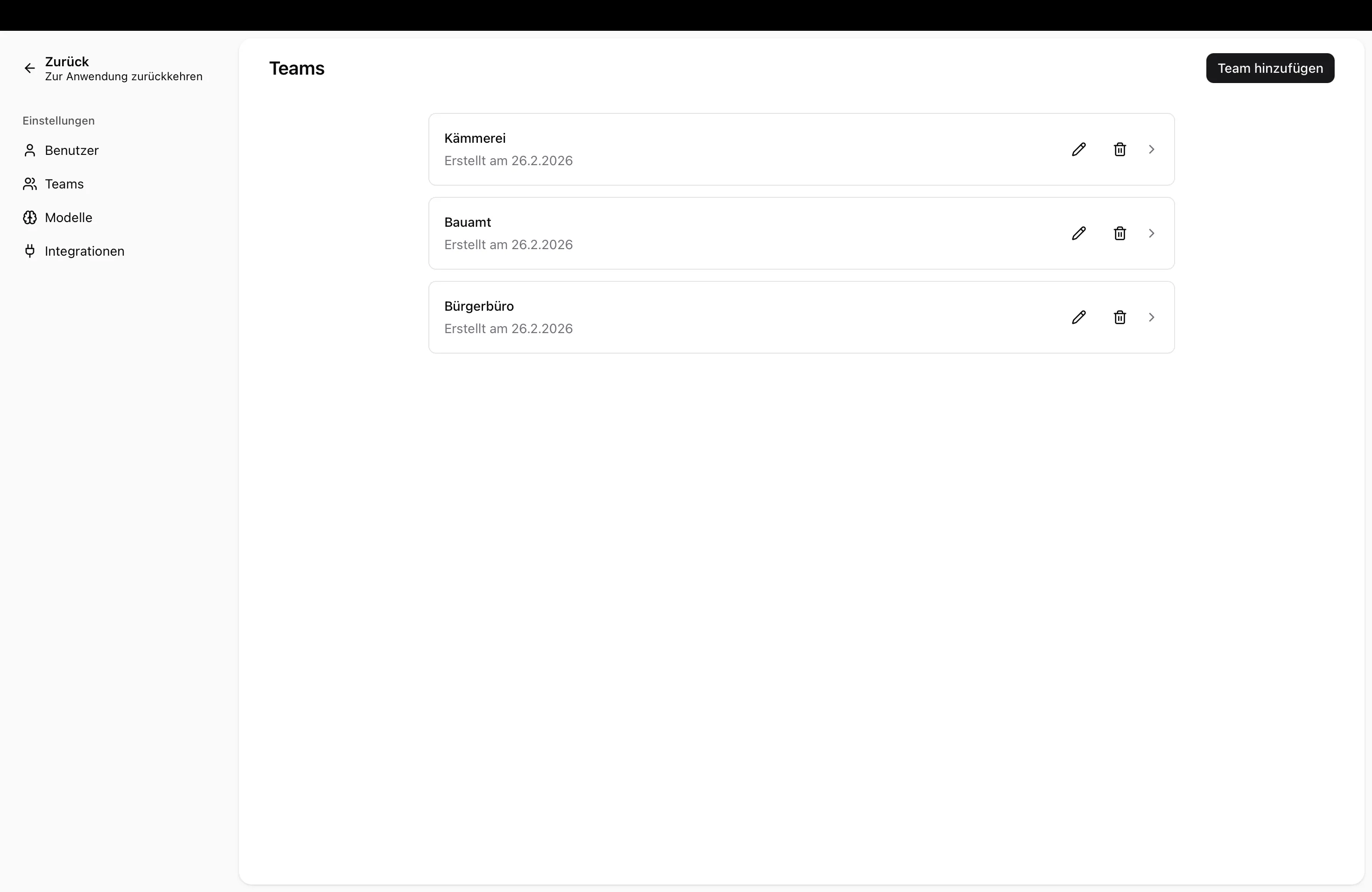
Adding a Team
Section titled “Adding a Team”- Navigate to Admin Settings → Teams
- Click Add Team
- Enter a team name (must be unique within your organization)
- Click Create
Adding Users to a Team
Section titled “Adding Users to a Team”- Open the desired team
- Click Add Member
- Select the person from your organization’s user list
- Confirm
A user can belong to multiple teams — for example, if someone works across two departments.
Removing Users from a Team
Section titled “Removing Users from a Team”- Open the team
- Click the delete icon next to the user
- The user loses access to skills shared with that team
Deleting a Team
Section titled “Deleting a Team”- Click the delete icon next to the team in the overview
- Confirm the action
Restricting Model Access for Teams
Section titled “Restricting Model Access for Teams”You can control which AI models are available to members of a specific team. By default, all teams have access to the same models as the organization.
Enabling Model Override
Section titled “Enabling Model Override”- Open the desired team
- Switch to the Models tab
- Enable the Override model access toggle
- Enable or disable individual models for this team
When override is enabled, team members will only see the models you’ve selected — not the organization’s default models.
Setting a Team Default Model
Section titled “Setting a Team Default Model”You can also define a default model for the team. Team members will automatically start with this model unless they choose a different one.
- Enable at least one model for the team
- Select the desired model in the Team default model section
Next Steps
Section titled “Next Steps”- Manage Users — Manage your organization’s users
- Skills — Create skills and share them with teams