

Models
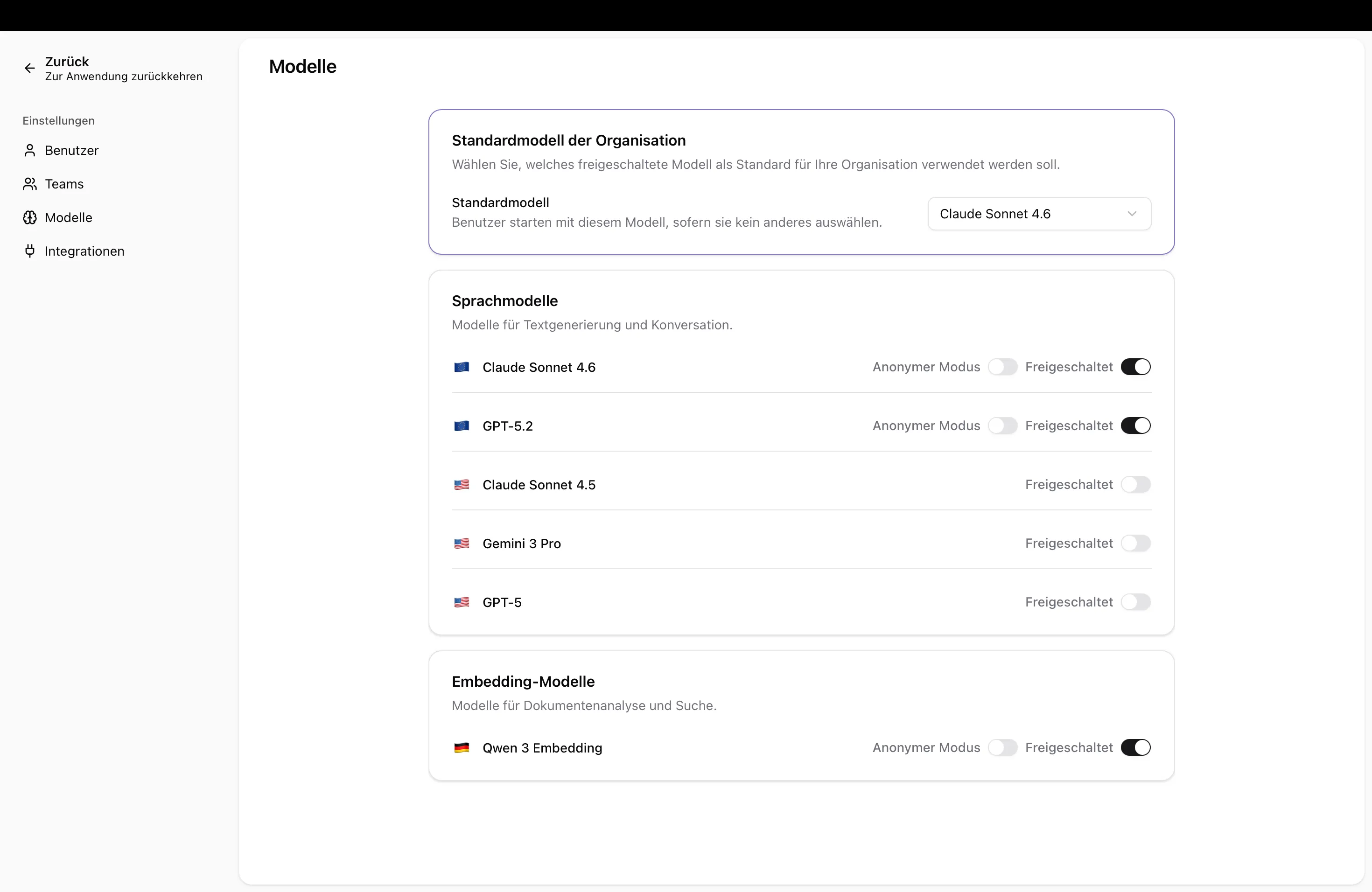
In the Models section, you determine which language models are available to users in your organization. You can enable, disable, and set a default model for the entire organization. Users will only see the models you have enabled in their chat.
Opening the Model Overview
Section titled “Opening the Model Overview”- Navigate to Admin Settings → Models
- You will see a list of all available models with their provider and status
Available Models
Section titled “Available Models”| Model | Provider |
|---|---|
| Claude Sonnet 4.5 | Anthropic |
| GPT 5.2 | OpenAI |
| Mistral Medium 3.1 | Mistral |
Enabling or Disabling Models
Section titled “Enabling or Disabling Models”- Find the model in the list
- Toggle the Enabled switch
- Enabled: Users can select the model in chat
- Disabled: The model is no longer available to users
Enforce Anonymous Mode per Model
Section titled “Enforce Anonymous Mode per Model”You can make anonymous mode mandatory for each model. When this option is enabled, users can only use this model in anonymous mode – personal data is then automatically protected.
- Find the model in the list
- Enable the Enforce anonymous mode option
This is particularly useful when a model is operated by an external provider and you want to ensure that no personal data is transmitted to that provider.
Setting a Default Model
Section titled “Setting a Default Model”The default model is automatically pre-selected for new chats for all users.
- Find the desired model in the list
- Click Set as Default
- New chats will now use this model by default
Next Steps
Section titled “Next Steps”- Understanding Language Models — Background information on language models