

Chat
In the chat settings, you configure how the AI behaves in your conversations.
Opening Settings
Section titled “Opening Settings”- Click on your name at the bottom left
- Select Settings
- Navigate to the Chat section
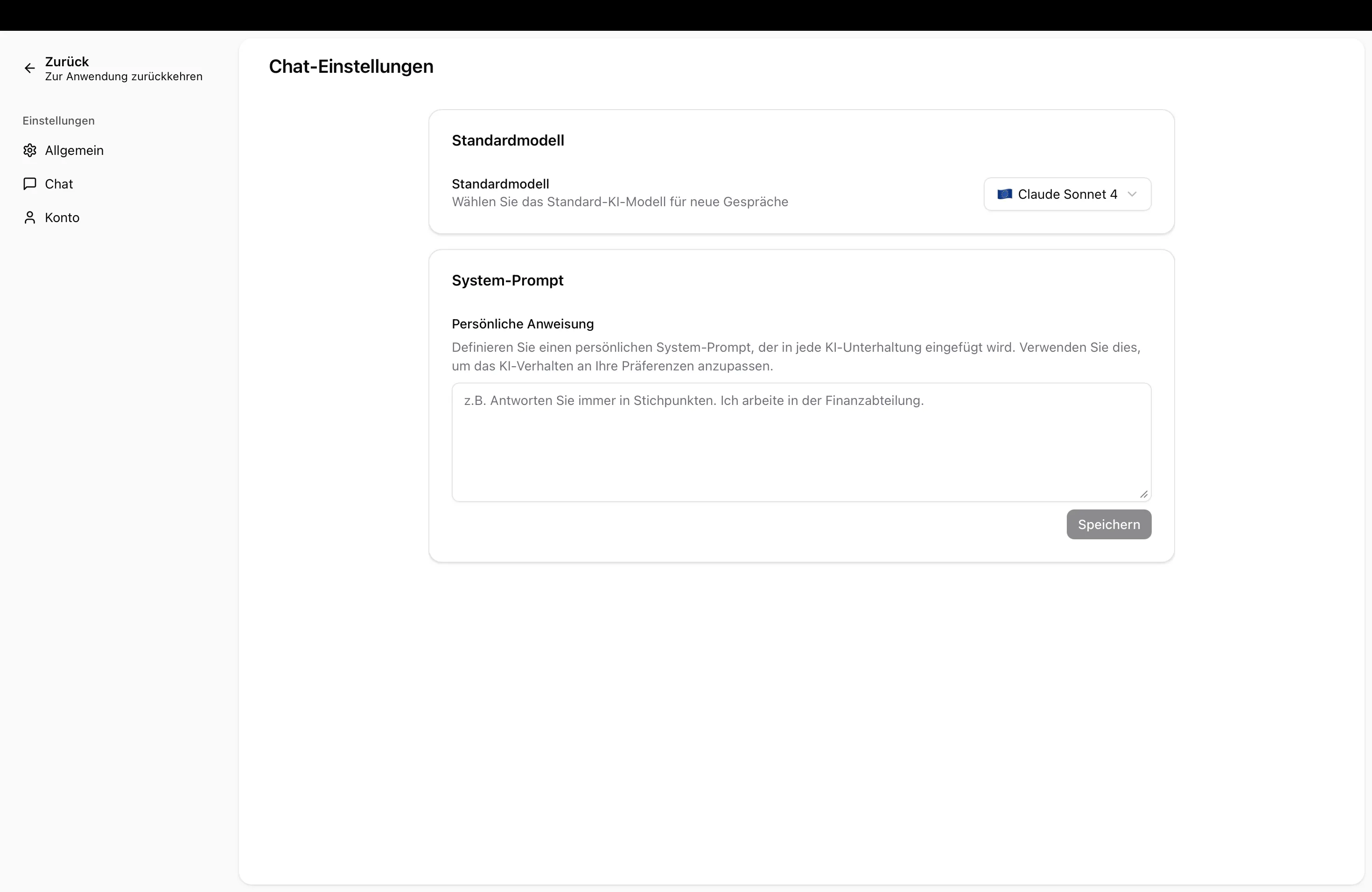
Default Model
Section titled “Default Model”Set which language model is used by default for your new chats. This setting applies only to you personally and overrides the default model that your administrator has set for the organization. You can also switch the model at any time directly within a chat.
Personal System Prompt
Section titled “Personal System Prompt”With the personal system prompt, you give the AI background information about yourself or how you work. This text is automatically included in every conversation — so you don’t have to repeat it each time.
What is this useful for?
Section titled “What is this useful for?”- Tell the AI which department or area you work in
- Define the style in which the AI should respond (e.g., in bullet points, formally, in plain language)
- Provide recurring instructions that should apply to all your conversations
Creating or Editing a System Prompt
Section titled “Creating or Editing a System Prompt”- Enter your text in the text field under System Prompt
- Click Save
Removing a System Prompt
Section titled “Removing a System Prompt”- Click Remove next to the text field
- The system prompt will be deleted and the AI will behave without your personal instructions again
Next Steps
Section titled “Next Steps”- General Settings — Adjust appearance and language
- Account Settings — Manage your name and email address