

Login & Password
Here you’ll find everything about logging into Ayunis Core – from daily login to changing your password.
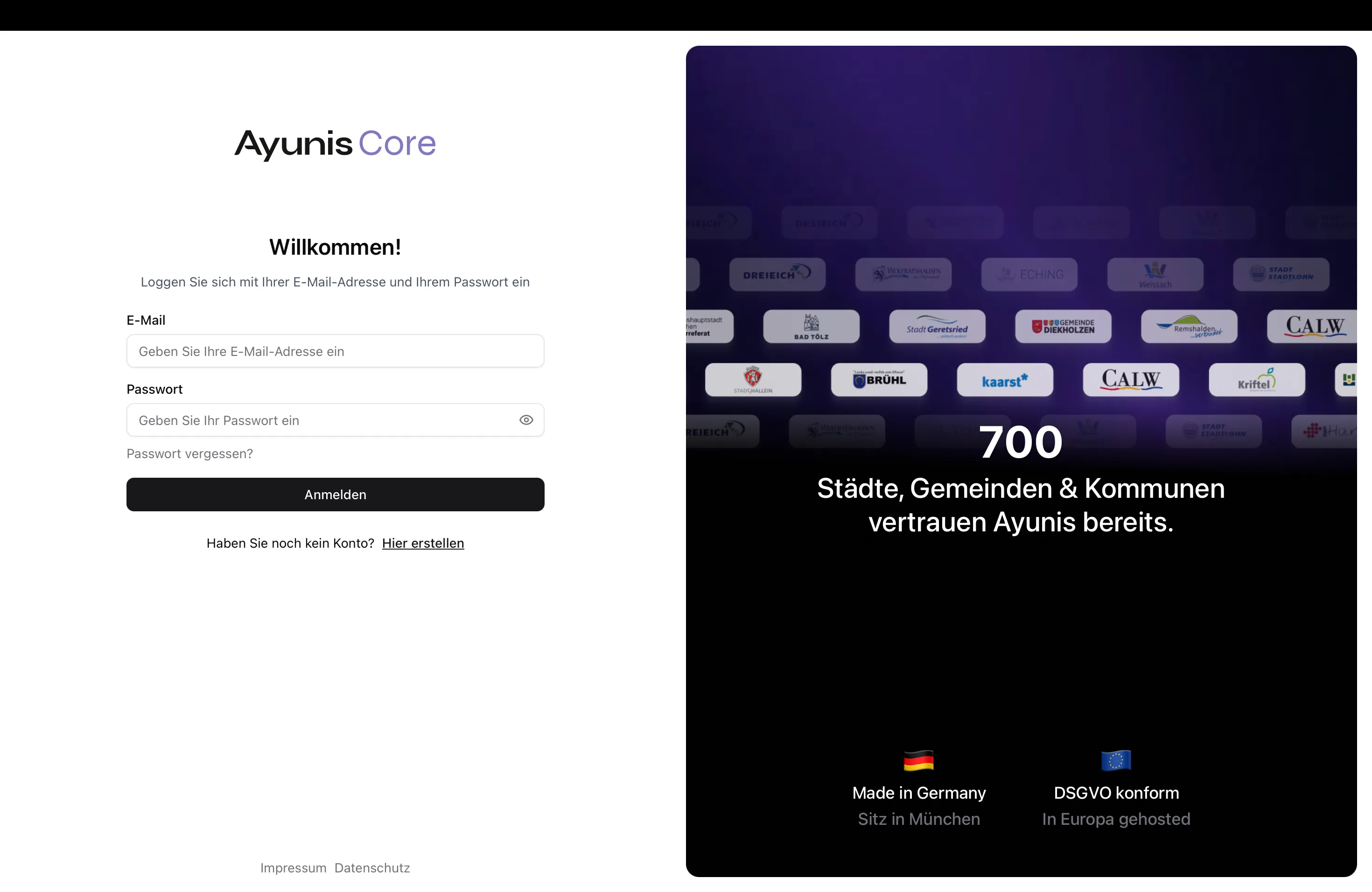
Log In
Section titled “Log In”- Open Ayunis Core in your web browser
- Enter your email address
- Enter your password
- Click Log In
Change Password
Section titled “Change Password”If you know your current password and want to change it:
- Log in to Ayunis Core
- Navigate to Settings → Account
- Click Change Password
- Enter your current password
- Enter your new password (and confirm it)
- Click Save
Password Requirements
Section titled “Password Requirements”| Requirement | Details |
|---|---|
| Minimum Length | 8 characters |
| Letters | Upper and lowercase letters |
| Numbers | At least one number |
| Special Characters | At least one (e.g., !, @, #, $) |
Forgot Password
Section titled “Forgot Password”If you’ve forgotten your password:
- Go to the login page of Ayunis Core
- Click Forgot Password?
- Enter your email address
- Click Send Link
- Check your email inbox (including the spam folder)
- Click the link in the email
- Set a new password
Common Problems
Section titled “Common Problems”Login Fails
Section titled “Login Fails”- Wrong password? – Pay attention to capitalization and the Caps Lock key
- Wrong email address? – Check if you’re using the correct email address (usually your work email)
- Account locked? – Contact your administrator
Reset Email Doesn’t Arrive
Section titled “Reset Email Doesn’t Arrive”- Wait 5 minutes – delivery may be delayed
- Check your spam folder
- Make sure you entered the correct email address
- Request the link again
- Contact your administrator if the problem persists
Account Not Found
Section titled “Account Not Found”If a message appears that no account exists with your email address:
- Check if you’re using the correct email address
- Ask your administrator if your invitation has already been sent
- Your account may have been deactivated – contact your administrator
Security Tips
Section titled “Security Tips”- Use a unique password for Ayunis Core
- Use a password manager for secure passwords
- Never share your password with others
- Log out when using a shared computer
- Report suspicious activity immediately to your administrator
Next Steps
Section titled “Next Steps”- Account Settings – Manage your account information
- Getting Started – Getting started with Ayunis Core