

As Administrator: Invite Your Users
As an administrator, you set up access for your team. Here you’ll learn step by step how to send invitations and manage your users.
Accessing User Management
Section titled “Accessing User Management”- Click on your name at the bottom left
- Select Admin Settings
- Navigate to the Users section
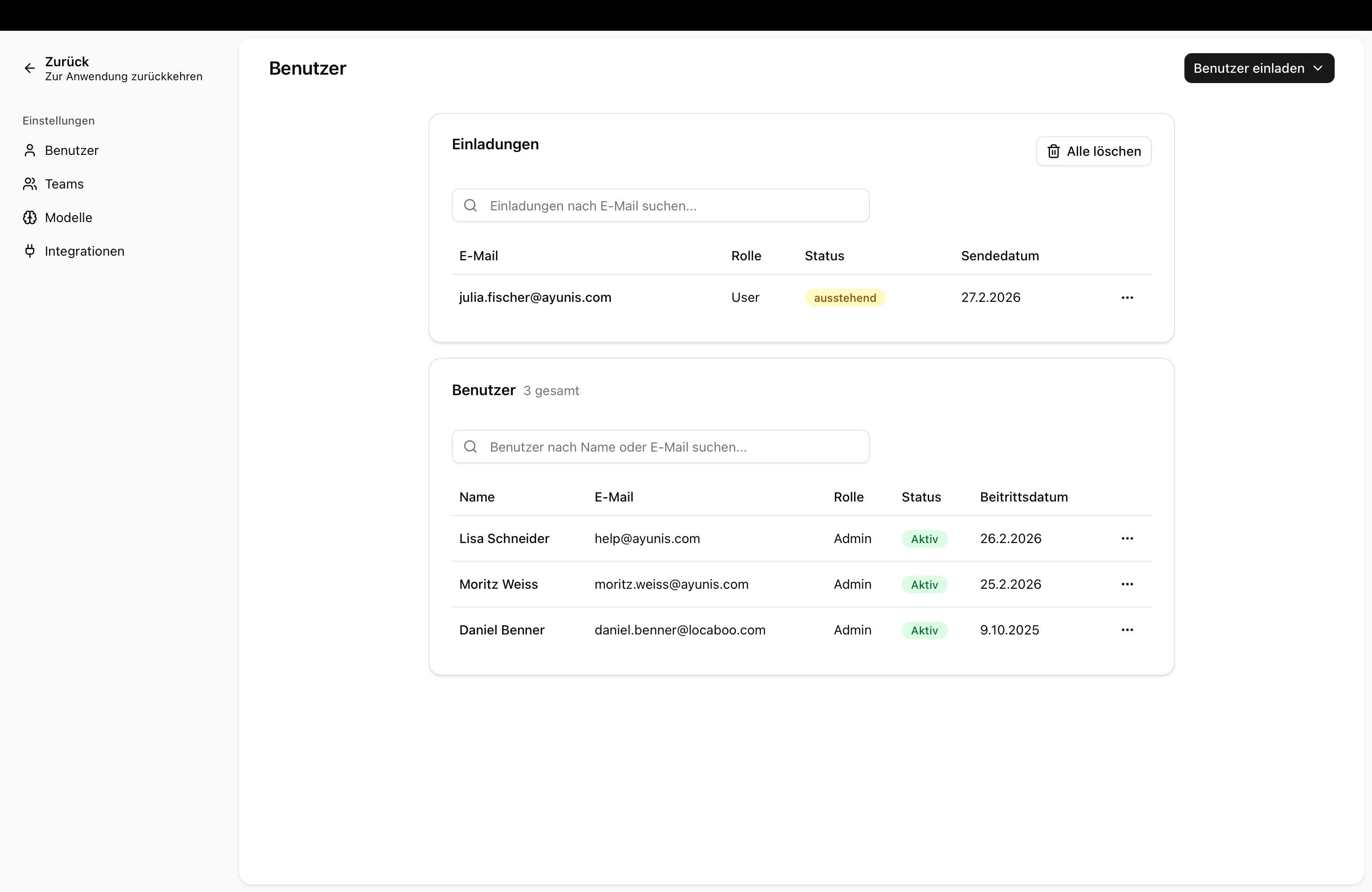
You’ll now see an overview of all current users and pending invitations.
Sending Invitations
Section titled “Sending Invitations”Invite a Single Person
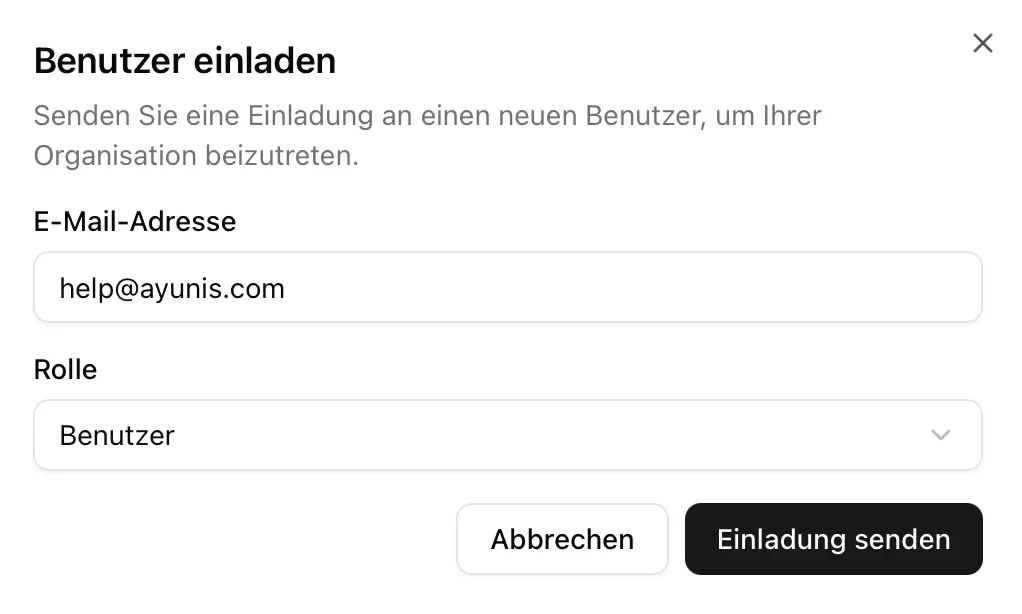
Section titled “Invite a Single Person”- Click on Invite user
- Select Invite one user
- Enter your colleague’s email address
- Select a role:
| Role | Permissions |
|---|---|
| User | Can chat, use skills, and create their own |
| Administrator | Additionally: Manage users, change settings, configure models |
- Click Send invitation
The invited person will receive an email with a registration link.
Invite Multiple Users at Once
Section titled “Invite Multiple Users at Once”If you want to invite many people at once:
- Click Invite user
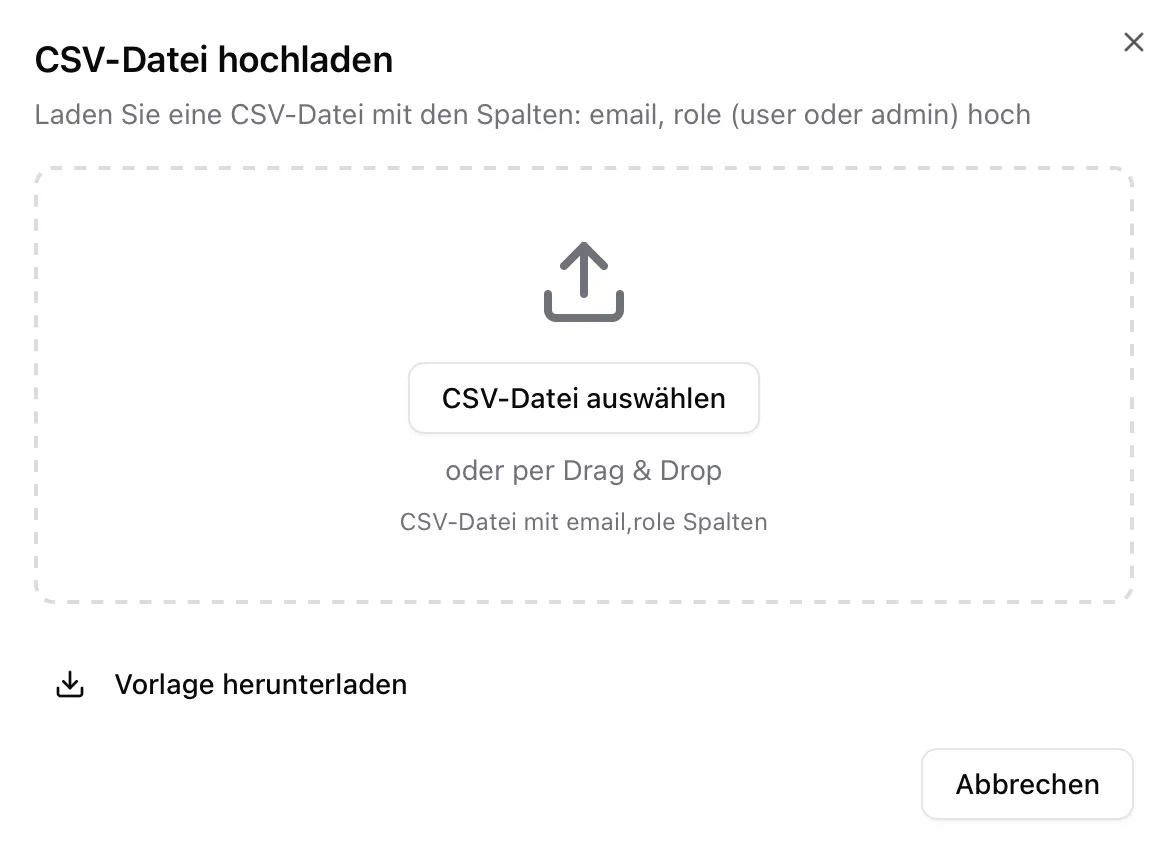
- Select Invite multiple users
- Download the CSV template
- Fill in the template with email addresses and desired roles – do not modify the columns of the template
- Upload the completed CSV file
- Review the preview – incorrect entries will be marked
- Click Send invitations
If there are errors (e.g., duplicate email addresses or invalid formats), you’ll receive a detailed error message for each affected row.
Managing Invitations
Section titled “Managing Invitations”View Pending Invitations
Section titled “View Pending Invitations”In the Invitations section, you’ll see all invitations that haven’t been accepted yet.
Revoke an Invitation
Section titled “Revoke an Invitation”If you want to cancel an invitation:
- Find the invitation in the list
- Click Delete
- The invitation link becomes invalid immediately
Resend an Invitation
Section titled “Resend an Invitation”If an invitation has expired (after 7 days) or wasn’t received:
- Delete the existing invitation
- Create a new invitation for the same email address
Managing Users
Section titled “Managing Users”User Overview
Section titled “User Overview”Under Admin Settings → Users, you’ll see for each user:
- Name and email address
- Assigned role
- Status (active/inactive)
- Join date
Change a User’s Role
Section titled “Change a User’s Role”- Click on the user in the list
- Change the role via the dropdown menu
- Confirm the change
Send Password Reset
Section titled “Send Password Reset”If a user has forgotten their password, you can trigger a password reset:
- Click on the user in the list
- Select Send password reset
- The user will receive an email with a link to reset their password
Remove a User
Section titled “Remove a User”If someone leaves your organization or no longer needs access:
- Click on the user in the list
- Select Remove
- Confirm the action
Access will be blocked immediately.
Next Steps
Section titled “Next Steps”- Inform your invited colleagues about what to expect: As User: The Invitation Email
- Set up teams to organize collaboration: Manage Teams