

Search and Organize Chats
Over time, many chats accumulate. Ayunis Core provides features to quickly find conversations and keep them organized.
Chats in the Sidebar
Section titled “Chats in the Sidebar”All your chats appear in the left sidebar, sorted by the date of the last message – the newest are at the top.
Click on a chat to open it and continue working there.
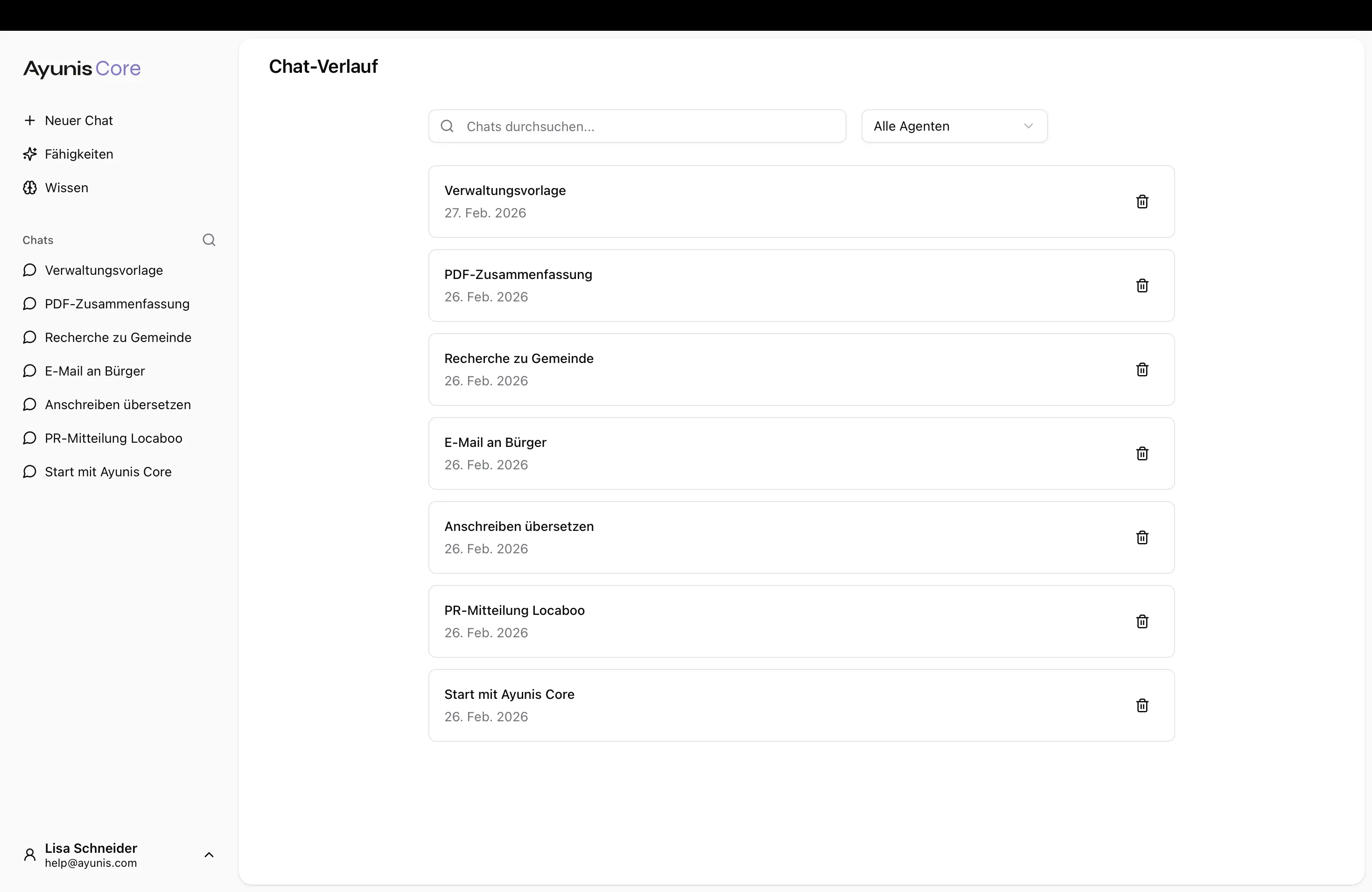
Searching Chats
Section titled “Searching Chats”- Click the search field at the top of the sidebar
- Enter a search term (e.g., “building permit” or “minutes”)
- The list automatically filters to matching chats
The search looks through chat titles. That’s why it’s helpful to give your chats meaningful titles.
Filtering Chats by Skill
Section titled “Filtering Chats by Skill”If you know which skill you used:
- Use the filter at the top of the search page
- Select the desired skill
- Only chats with that skill will be displayed
Tips for Good Organization
Section titled “Tips for Good Organization”| Tip | Example |
|---|---|
| Give meaningful titles | ”Response Citizen Inquiry Waste Fees” instead of “Chat 1” |
| Regularly clean up old chats | Delete conversations you no longer need |
| One topic per chat | Start a new chat for new tasks |
| Save important results | Copy finished texts to your files before deleting the chat |
Practical Example
Section titled “Practical Example”You created a draft for an invitation letter last week and want to adjust it. Enter “invitation letter” in the search – the matching chat appears immediately in the list.
Next Steps
Section titled “Next Steps”- Create and manage chats – Basics of chat management
- Documents, Images, and Knowledge Collections – Use files and knowledge collections in your chats