

Understand and Select Language Models (LLMs)
Behind Ayunis Core are so-called language models (also called LLMs – Large Language Models). These models generate the texts and responses you receive in chat. Here you’ll learn what you need to know about them.
What is a Language Model?
Section titled “What is a Language Model?”A language model is software trained on vast amounts of text. Through this training, it has learned how language is structured and can independently generate texts, answer questions, summarize content, or translate. The responses are generated word by word based on probabilities – the model “calculates” which word fits best next.
Available Models
Section titled “Available Models”Which language models are available to you is determined by your administrator. The default model for your organization is also set by the administrator. The following models are currently available:
| Model | Provider | Strengths |
|---|---|---|
| Claude Sonnet 4.5 | Anthropic | Excellent text quality, careful and nuanced responses, strong with longer texts and analyses |
| GPT 5.2 | OpenAI | Versatile, fast across a wide range of tasks |
| Mistral Medium 3.1 | Mistral | European provider, strong performance with German-language texts, fast responses |
Which Model Should I Choose?
Section titled “Which Model Should I Choose?”When creating a chat, you can select a language model from the models enabled by your administrator.
Your Organization’s Default Model
Section titled “Your Organization’s Default Model”Your administrator has set a default model for your organization. This model is automatically suggested when you start a new chat. It is suitable for most everyday tasks. You can set your own default model in your chat settings, which will override the organization setting for you.
Guidance
Section titled “Guidance”| Task | Recommended Model |
|---|---|
| General questions, short texts, quick answers | Your organization’s default model |
| Complex analyses, detailed reports, nuanced evaluations | Claude Sonnet 4.5 |
| Versatile tasks | GPT 5.2 |
| German-language texts, quick drafts | Mistral Medium 3.1 |
| Sensitive data | Any model with anonymous mode enabled |
Switching Models During a Chat
Section titled “Switching Models During a Chat”You can also switch the language model within an active chat:
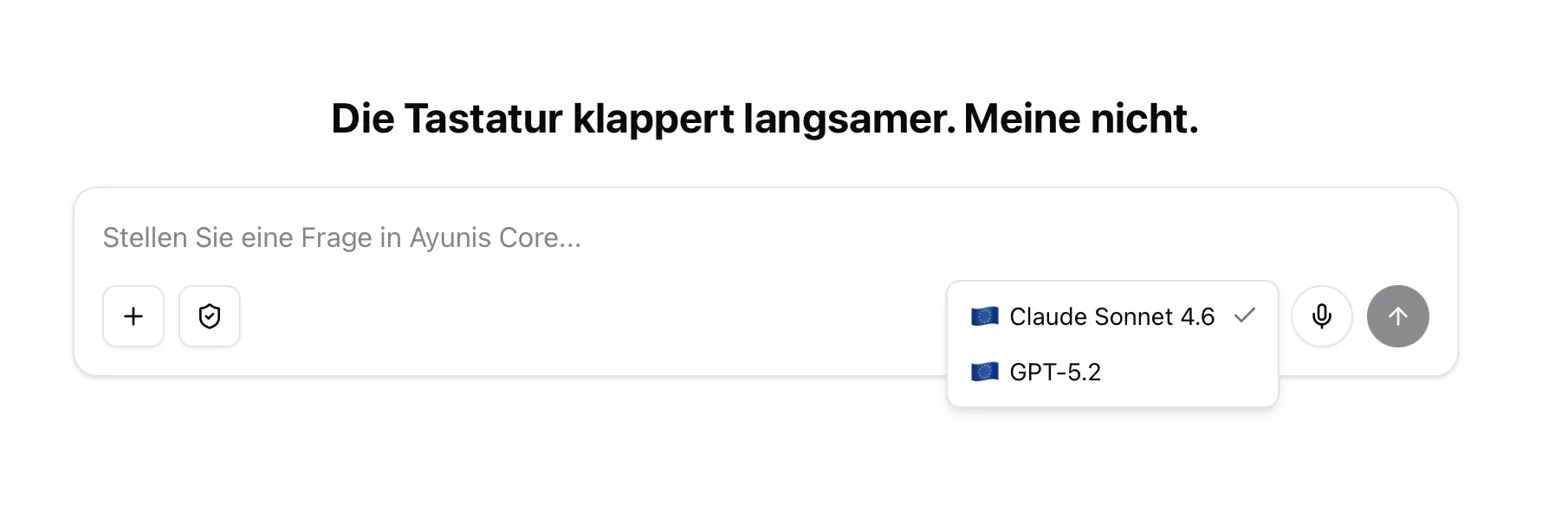
- Click the model selection in the input area
- Select another model from the list
- Your next message will be answered with the new model
The previous conversation history remains intact.
Next Steps
Section titled “Next Steps”- Prompting: Basics & Best Practices – How to get the best out of the language model