

Create and Manage Chats
In Ayunis Core, you conduct your conversations with the AI in so-called chats. Each chat is an independent conversation that is automatically saved.
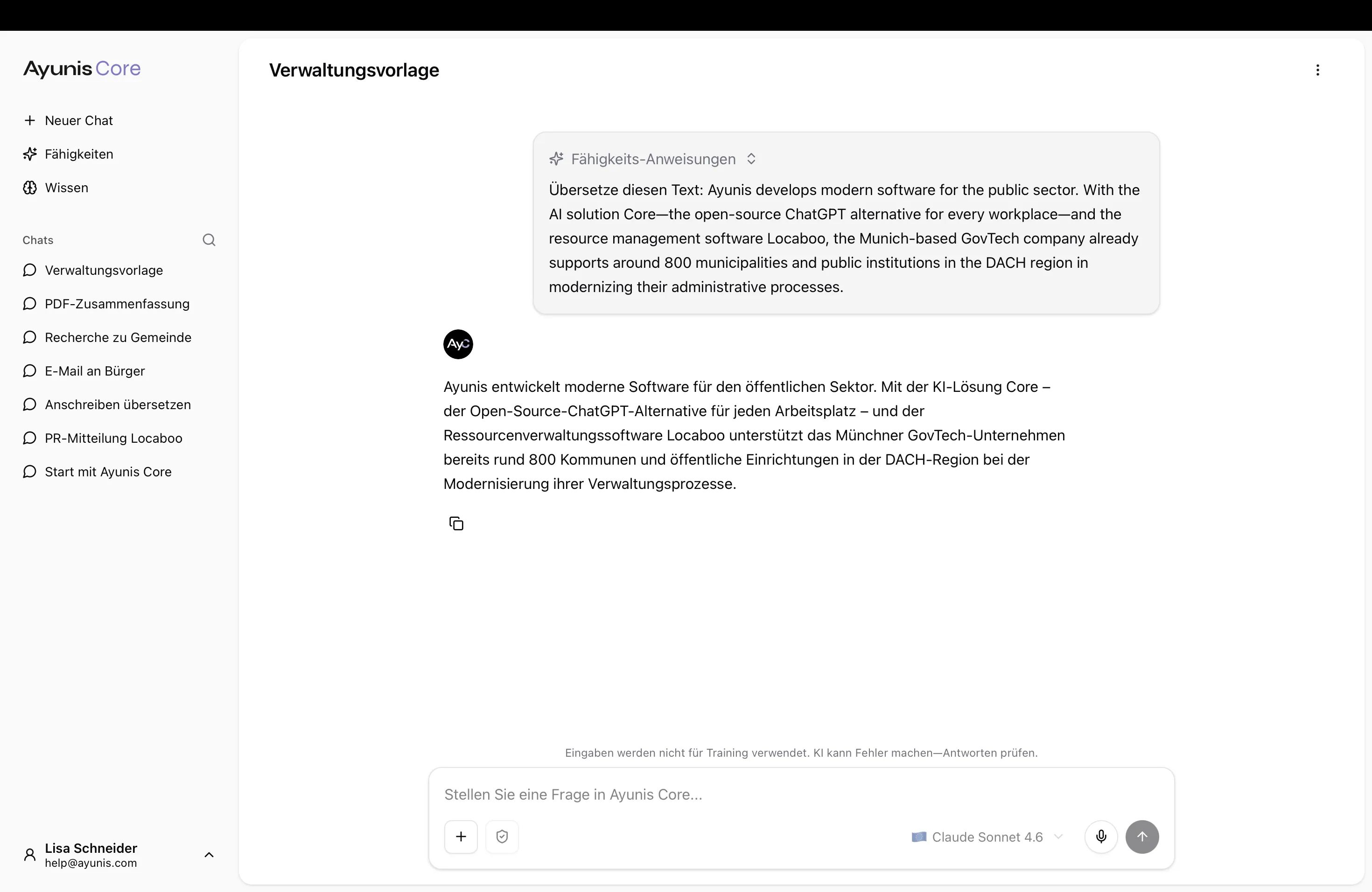
Starting a New Chat
Section titled “Starting a New Chat”- Click + New Chat in the left sidebar (or press
Ctrl/Cmd + J) - Optionally select a skill, a language model, or a knowledge collection
- Enter your message in the input field
- Press Enter or click the arrow on the right side of the input field
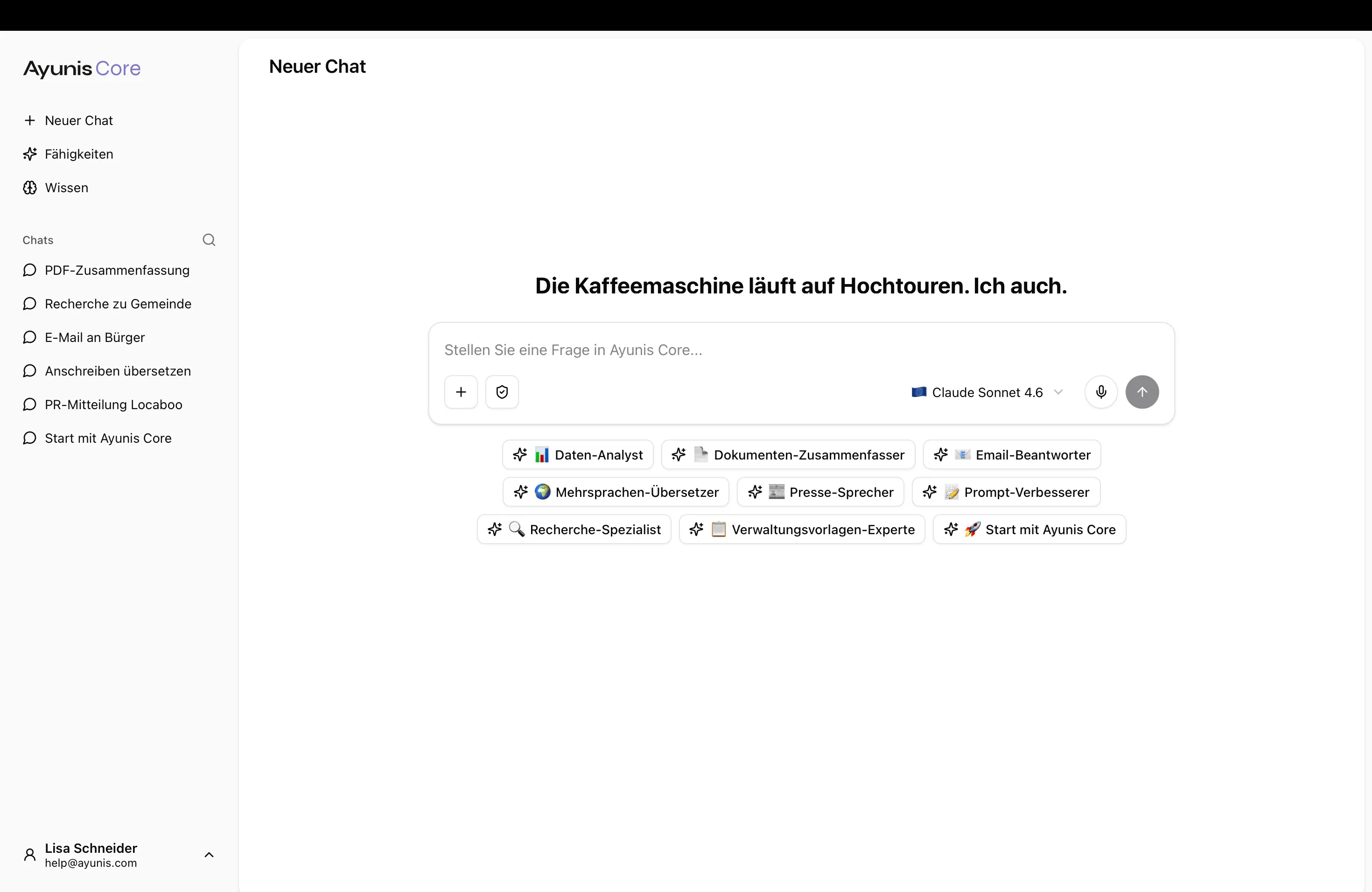
The AI’s response appears in real time – you can read along immediately as the text is generated.
Continuing a Conversation
Section titled “Continuing a Conversation”The AI remembers the history of your chat. You can:
- Ask follow-up questions without repeating the context
- Ask for clarification if you want something explained in more detail
- Build on previous answers to refine results
Practical Example: Refining a Letter
Section titled “Practical Example: Refining a Letter”You: Write a response letter to a citizen inquiry about the processing time for a building permit application.
AI: [Creates a draft]
You: Make the tone a bit friendlier and add the current processing time of 6–8 weeks.
AI: [Revises the draft accordingly]
Stopping a Response
Section titled “Stopping a Response”If the AI response is going in the wrong direction:
- Click the Stop button (appears during generation)
- The response will be stopped
- Reformulate your request and send a new message
Copying Responses
Section titled “Copying Responses”To copy an AI response into another program:
- Hover over the response
- Click the Copy icon
- Paste the text at the desired location
Adjusting Chat Title
Section titled “Adjusting Chat Title”Each chat automatically receives a title based on your first message. To change it:
- Click the three dots (⋯) next to the chat in the sidebar
- Select Rename
- Enter a meaningful title
- Confirm with Enter
A good title helps you quickly find important conversations later – e.g., “Response Citizen Inquiry Parking Permit” or “Draft Annual Report 2025”.
Deleting a Chat
Section titled “Deleting a Chat”If you no longer need a chat:
- Click the three dots (⋯) next to the chat in the sidebar
- Select Delete
- Confirm – the chat will be permanently deleted
Next Steps
Section titled “Next Steps”- Search and organize chats – How to find previous conversations
- Prompting: Basics & Best Practices – How to formulate better requests